Selling
Two ways to sell: an itemised invoice for goods, and "Quick sale by amount" for work or services. Open the sale screen from the green button in the middle of the bottom bar.
1. Pick the items
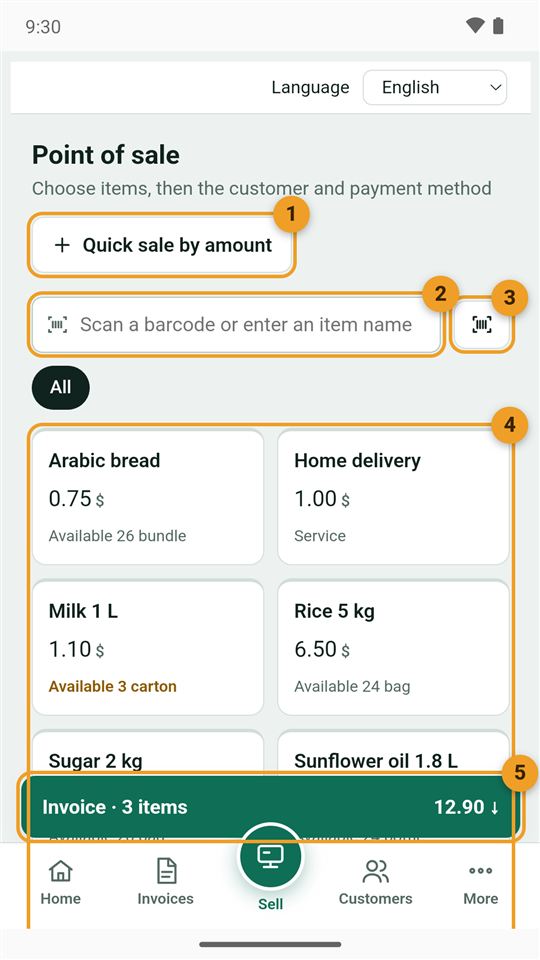
- Quick sale by amount: for work or a service without items (see Quick sale).
- Search: type an item name, or scan with a connected barcode reader.
- Camera: read a product barcode with the phone camera.
- Items: tap an item once per piece. What is left in stock shows under it.
- Invoice bar: pieces and total. Tap it to open the invoice.
2. Check the invoice
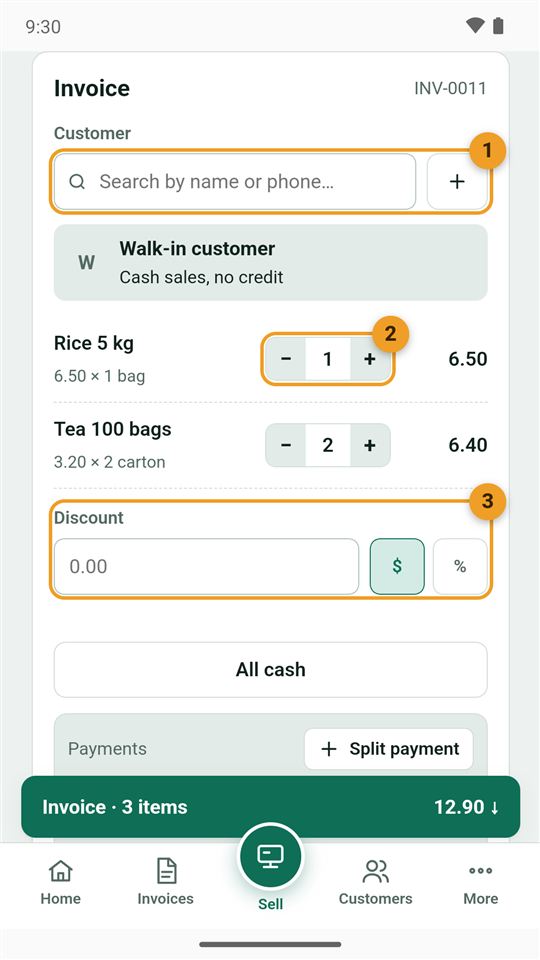
- Customer: leave "Walk-in customer" for a normal sale, search for a registered customer, or add a new one with +.
- Quantity: change it with − and +, or type it.
- Discount: an amount or a percentage.
3. Payment and saving
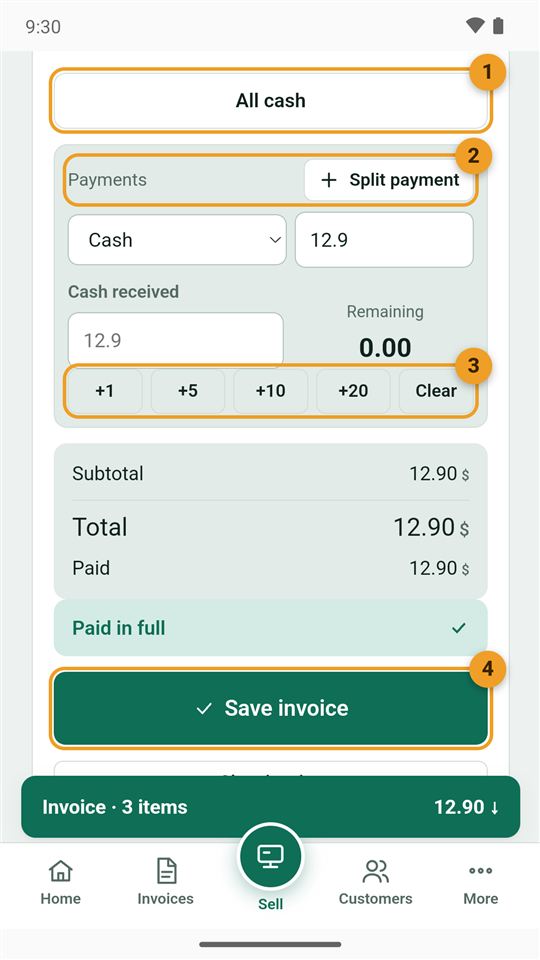
- All cash: fills the whole amount in one tap.
- Payment method: cash, wallet or bank; "Split payment" spreads it over several methods.
- Cash received: the +1, +5, +10 and +20 buttons work out the change for you.
- Save invoice: turns green when the invoice is complete.
4. After saving: view, print, share
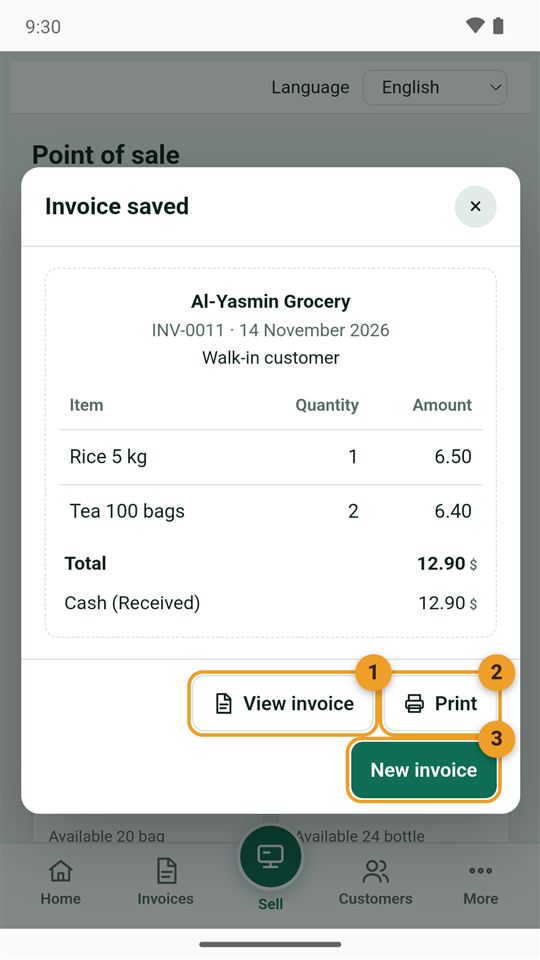
After saving, an "Invoice saved" window appears:
- View invoice with all its details.
- Print on a receipt or regular printer.
- New invoice for the next customer.
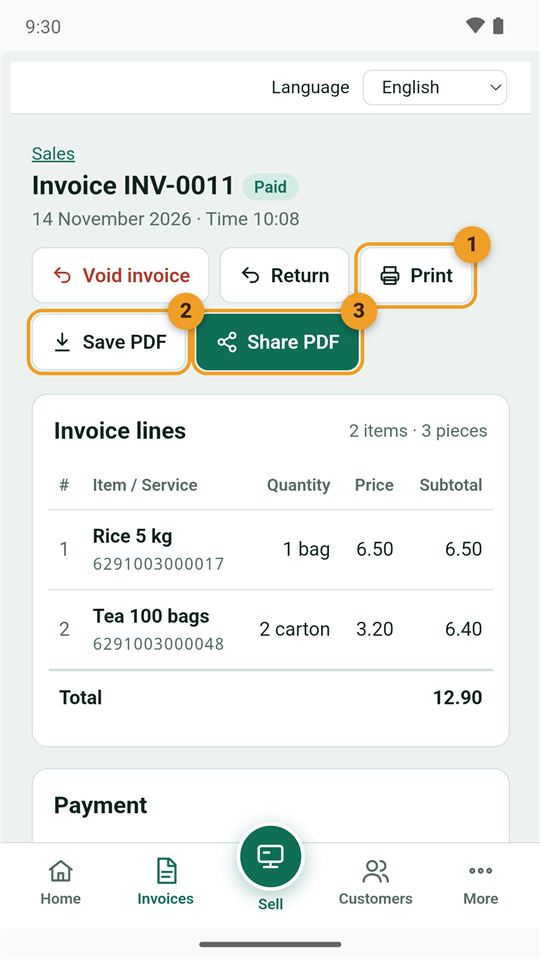
On the invoice page:
- Print.
- Save PDF on the phone.
- Share PDF on WhatsApp, e-mail or any app.
Choose the paper further down the page: an 80 mm thermal receipt or A4.
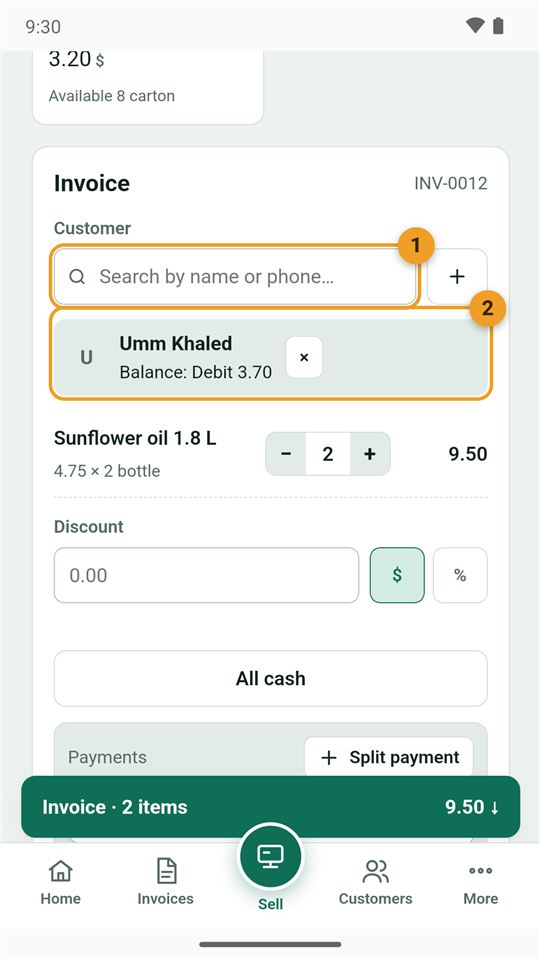
5. Selling on credit
- Search for the customer in the Customer field and pick them from the list.
- Their card shows with their current balance (debit = they owe you).
A walk-in customer cannot buy on credit, so choose a registered customer first.
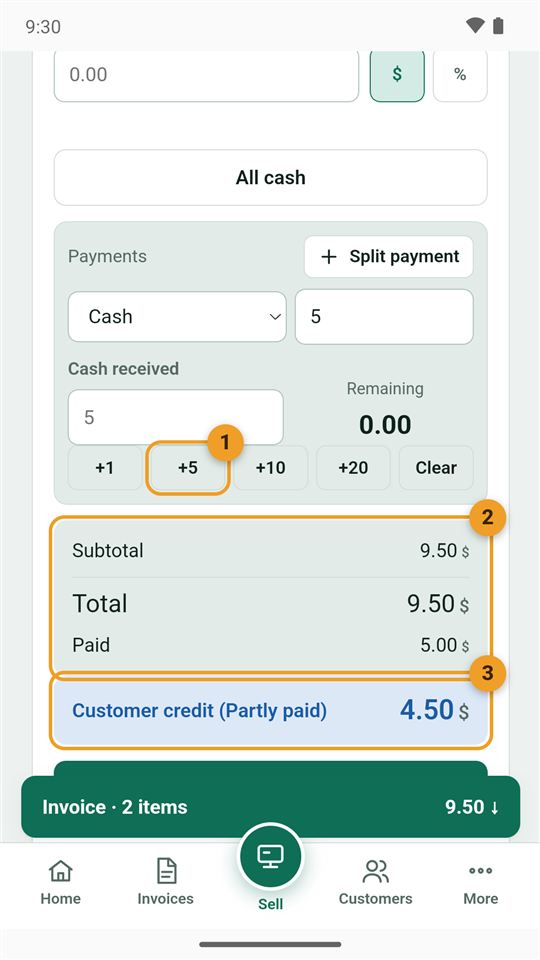
- Enter only what they paid now, for example +5.
- The total and the amount paid show.
- The rest is recorded as customer credit: here $4.50 goes on their account, to be paid later with a receipt.
6. Quick sale by amount
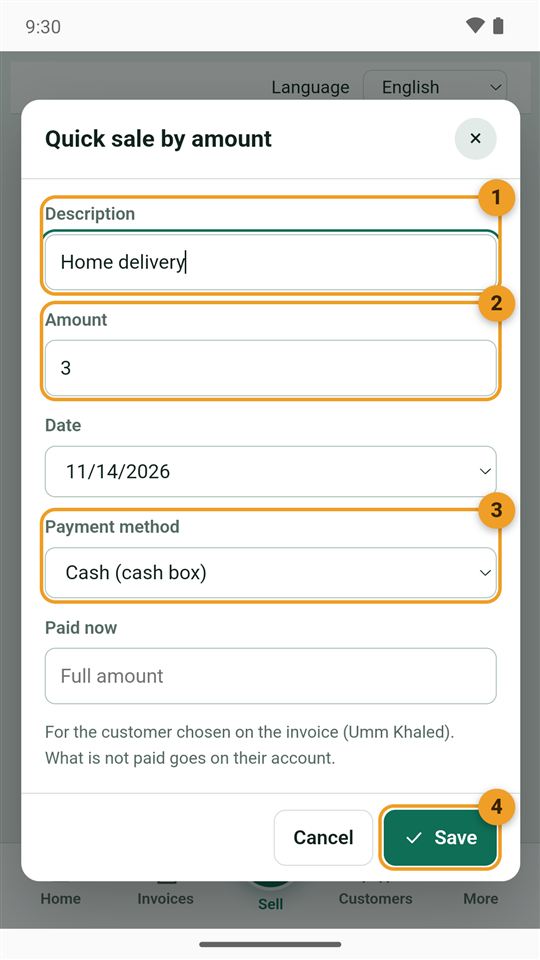
For selling work or a service: a repair fee, a ride, a day's work, a delivery.
- Description: what you sold, such as "Home delivery".
- Amount and date (you can record yesterday's job).
- Payment method: cash, wallet, or on credit to a customer.
- Save.