Home › Guide › Purchases and stock
Purchases and stock
For those who buy goods and sell them: record what you buy from suppliers, and item quantities, their cost and your profit on them are worked out automatically. These sections show under "More" once you start using them.
1. Suppliers and purchases
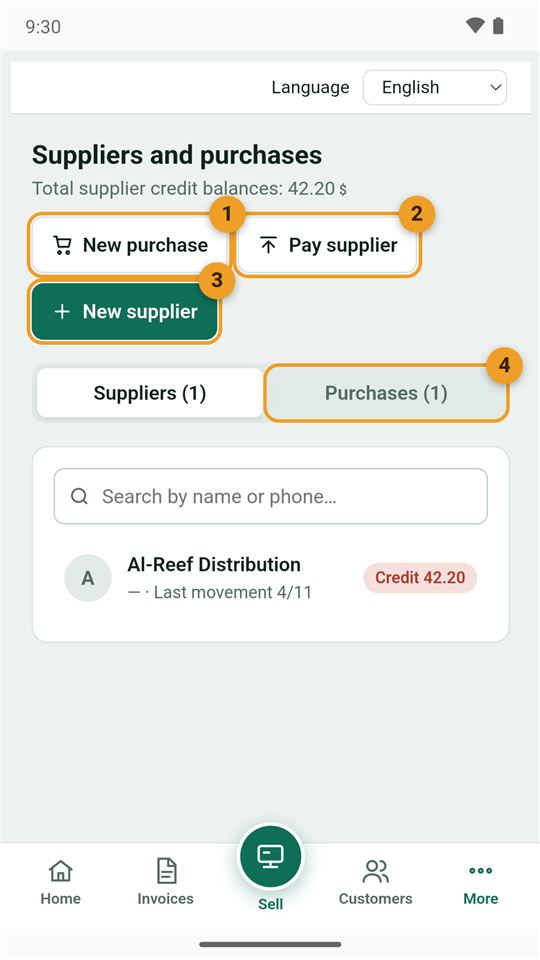
From More → Suppliers and purchases:
- New purchase: a purchase invoice from a supplier.
- Pay supplier: pay what you owe them, in full or in part.
- New supplier.
- Purchases: all earlier purchase invoices.
2. A purchase invoice
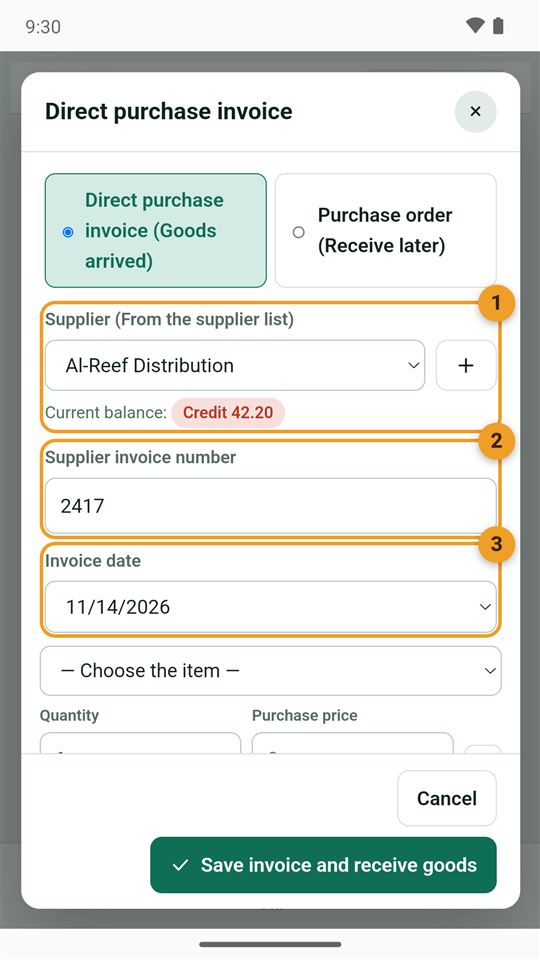
Choose "Direct purchase invoice" if the goods have arrived (or "Purchase order" to receive them later):
- The supplier, with their current balance.
- The supplier's invoice number (optional).
- The date.
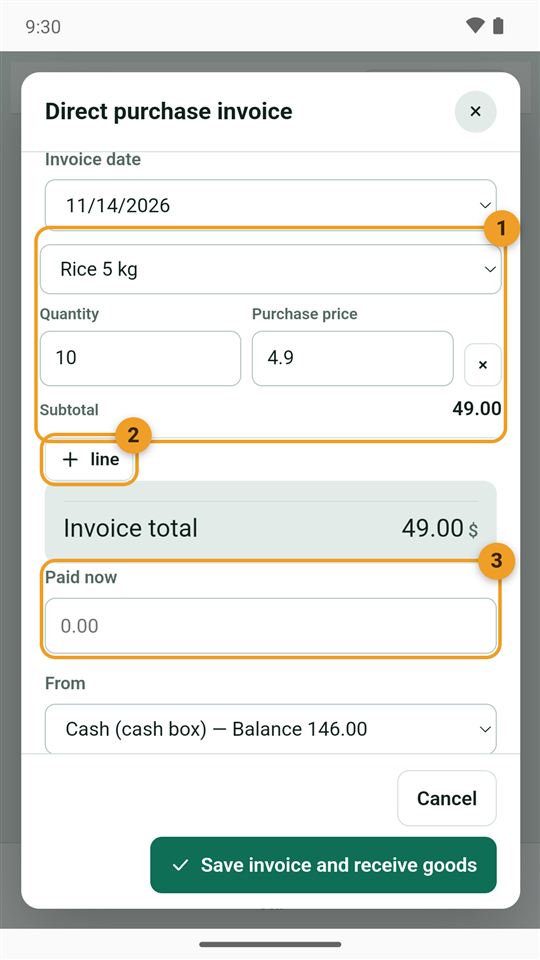
- The item, quantity and purchase price. The subtotal shows below.
- line: to add another item.
- Paid now: what you paid the supplier; the rest is recorded as owed to them.
Below: where you paid from, and the Take a photo and From the gallery buttons for the supplier's paper invoice, then "Save invoice and receive goods".
3. Add an item or a service
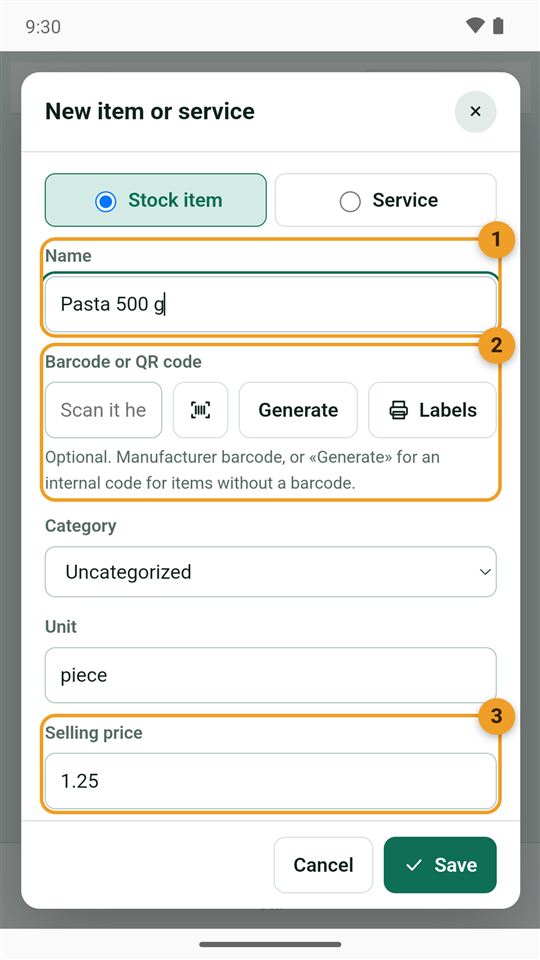
From More → Items and inventory → New item or service. Choose "Stock item" for goods or "Service" for work:
- Name.
- Barcode: scan it with the camera button, type it, or tap Generate for an item without a barcode, and Labels to print its label.
- Selling price.
Below: the cost, the current quantity, and the minimum quantity at which the app warns you that the item is running low.
4. Print barcode labels
From the items page → Print barcodes:
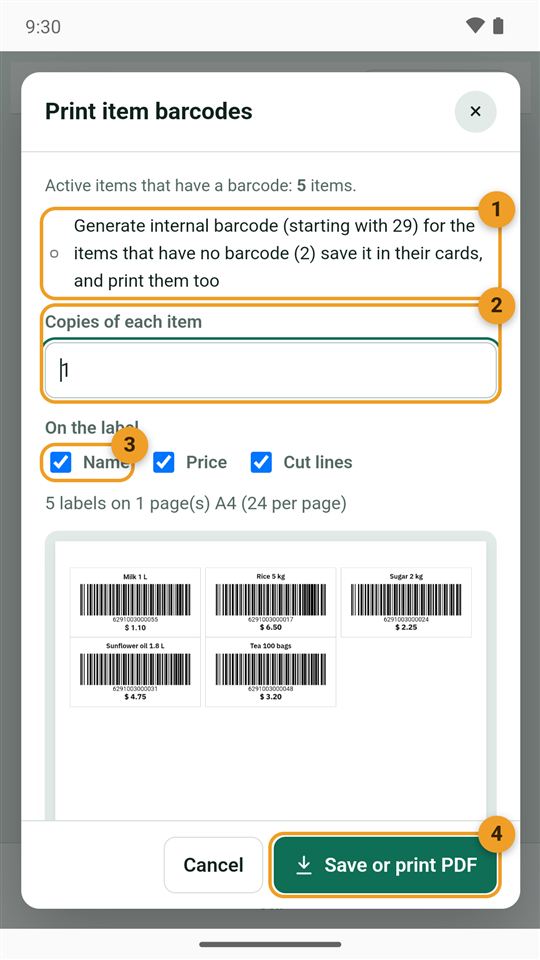
- Generate an internal barcode (starting with 29) for items without one; it is saved in their cards and printed too.
- The number of copies of each item.
- What goes on the label: the name, price and cut lines.
- Save or print PDF: an A4 sheet of 24 labels.